Cesium Three切换 · Cesium Switch · ▶ 在线运行案例
案例合集: 三维可视化功能案例(threehub.cn)
开源仓库github地址: https://github.com/z2586300277/three-cesium-examples
**400个案例代码: ** 网盘链接
你将学到什么
- Cesium Viewer 初始化与场景配置
- 相机交互控制器
- 外部模型 / 3D Tiles 加载
- Cesium Entity / DataSource 高层 API
- Cesium 屏幕空间拾取交互
- Cesium 相机定位与跟随
效果说明
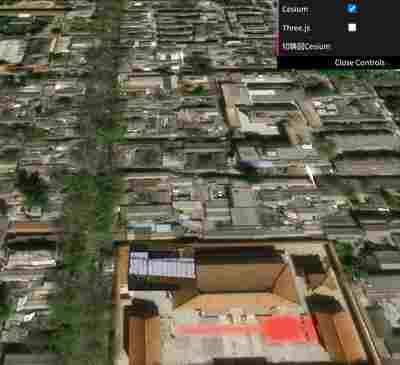
本案例演示 Cesium Three切换 效果:基于 WebGL 实现「Cesium Three切换」可视化效果,附完整可运行源码;核心用到 OrbitControls、glTF/Draco、Cesium。建议先打开文首在线案例查看动态画面,再对照下方源码逐步理解。
核心概念
- Viewer 聚合 Scene、Camera、Clock 与渲染循环,是 Cesium 应用入口。
- OrbitControls 提供轨道旋转/缩放;开启
enableDamping后需在 animate 中controls.update()。 - Entity 面向点线面/模型/标签的高层 API;与 Primitive 相比更适合交互与属性驱动。
实现步骤
- 创建 Viewer,配置地形/影像(若案例需要)并设置初始相机
- 异步加载模型 / 3D Tiles / GeoJSON 等资源并加入 scene 或 entities
- 创建 OrbitControls(及 Raycaster 等交互控件,若源码包含)
- 在定时器或 GSAP 时间轴中更新 uniform / 变换,驱动特效播放
- 在
requestAnimationFrame循环中更新状态并 render(Cesium 为viewer.render或自动渲染)
代码要点
import * as THREE from 'three'
import { OrbitControls } from 'three/examples/jsm/controls/OrbitControls.js'
import { GLTFLoader } from 'three/examples/jsm/loaders/GLTFLoader.js'
import * as Cesium from 'cesium'
import * as dat from 'dat.gui'
import gsap from 'gsap'

const box = document.getElementById('box')

/* ------Cesium 操作-------- */
const cesiumBox = document.createElement('div')
Object.assign(cesiumBox.style, {
    height: '100%',
    width: '100%',
})
box.appendChild(cesiumBox)

const viewer = new Cesium.Viewer(cesiumBox, {
    animation: false,//是否创建动画小器件,左下角仪表
    baseLayerPicker: false,//是否显示图层选择器,右上角图层选择按钮
    baseLayer: Cesium.ImageryLayer.fromProviderAsync(Cesium.ArcGisMapServerImageryProvider.fromUrl('https://server.arcgisonline.com/arcgis/rest/services/World_Imagery/MapServer')),
    fullscreenButton: false,//是否显示全屏按钮,右下角全屏选择按钮
    timeline: false,//是否显示时间轴
    infoBox: false,//是否显示信息框
})

const entity = viewer.entities.add({
    name: '房子',
    position: Cesium.Cartesian3.fromDegrees(116.3975, 39.9085, 0), // 北京的经纬度和高度
    model: {
        uri: FILE_HOST + 'models/glb/build2.glb',
        minimumPixelSize: 100, // 最小像素大小
        maximumScale: 20000, // 最大缩放比例
    }
})
viewer.zoomTo(entity, new Cesium.HeadingPitchRange(0, -Math.PI / 4, 200)) // 设置相机位置和角度

viewer.screenSpaceEventHandler.setInputAction(async (movement) => {
    const pickedObject = viewer.scene.pick(movement.position);
    if (Cesium.defined(pickedObject) && pickedObject.id === entity) {
        if (pickedObject.id.name === '房子') {
            viewer.flyTo(entity)
            setTimeout(() => {
                threeBox.style.display = 'block'
                cesiumBox.style.display = 'none'
                const oldPosition = camera.position.clone()
                camera.position.set(0, 40, 40) // 设置新的相机位置
                gsap.to(camera.position, { ...oldPosition, duration: 2 })
            }, 1800)
        }
    }
}, Cesium.ScreenSpaceEventType.LEFT_CLICK);
/* ------Cesium 操作-------- */

/* ---------Three 操作--------- */
const threeBox = document.createElement('div')
threeBox.style.height = '100%'
threeBox.style.width = '100%'
threeBox.style.position = 'absolute'
threeBox.style.top = '0'
threeBox.style.left = '0'
box.appendChild(threeBox)

const scene = new THREE.Scene()
const camera = new THREE.PerspectiveCamera(75, threeBox.clientWidth / threeBox.clientHeight, 0.1, 1000000)
camera.position.set(0, 1, 3)
const renderer = new THREE.WebGLRenderer({ antialias: true, alpha: true, logarithmicDepthBuffer: true })
renderer.setSize(threeBox.clientWidth, threeBox.clientHeight)
threeBox.appendChild(renderer.domElement)
scene.add(new THREE.AmbientLight(0xffffff, 3), new THREE.AxesHelper(1000))
renderer.setAnimationLoop(() => renderer.render(scene, camera))
new OrbitControls(camera, renderer.domElement)
new GLTFLoader().load(FILE_HOST + 'models/glb/build2.glb', (gltf) => {
    scene.add(gltf.scene)
    gltf.scene.position.set(-5, 0, 5)
})
threeBox.style.display = 'none' // 默认隐藏 Three.js 视图
/* ---------Three 操作--------- */

const gui = new dat.GUI()
const options = { cesium: true, three: false }

gui.add(options, 'cesium').name('Cesium').onChange((value) => cesiumBox.style.display = value ? 'block' : 'none')
gui.add(options, 'three').name('Three.js').onChange((value) => threeBox.style.display = value ? 'block' : 'none')

gui.add({ switch: () => {

     gsap.to(camera.position, { x: 0, y: 40, z: 40, duration: 1.5, onComplete: () => {
        threeBox.style.display = 'none'
        cesiumBox.style.display = 'block'
        viewer.camera.flyTo({
            destination: Cesium.Cartesian3.fromDegrees(116.3975, 39.9085, 200), // 北京的经纬度和高度
            duration: 1.5,
        })
     }})

} }, 'switch').name('切换回Cesium')

GLOBAL_CONFIG.ElMessage('点击模型切换到 Three.js场景')
完整源码:GitHub
小结
- 本文提供 Cesium Three切换 完整 Cesium.js 源码与在线 Demo,建议先运行案例再改 uniform/参数做二次实验
- 更多 Cesium.js 实战案例见 three-cesium-examples 合集 与 GitHub 开源仓库