Theatrejs · Theatre.js · ▶ 在线运行案例
案例合集: 三维可视化功能案例(threehub.cn)
开源仓库github地址: https://github.com/z2586300277/three-cesium-examples
**400个案例代码: ** 网盘链接
你将学到什么
- OrbitControls 相机轨道交互
requestAnimationFrame渲染循环与resize自适应
效果说明
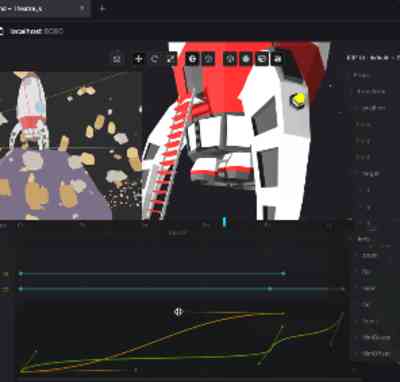
本案例演示 Theatrejs 效果:基于 WebGL 实现「Theatrejs」可视化效果,附完整可运行源码;核心用到 OrbitControls。建议先打开文首在线案例查看动态画面,再对照下方源码逐步理解。
核心概念
- Scene / Camera / WebGLRenderer 构成最小渲染闭环;大场景可开
logarithmicDepthBuffer缓解 Z-fighting。 - OrbitControls 提供轨道旋转/缩放;开启
enableDamping后需在 animate 中controls.update()。 - 阅读下方完整源码时,建议从
init/load/animate三条主线入手,再深入 shader 与工具函数。
实现步骤
- 搭建灯光与环境(如有)
- requestAnimationFrame 循环 update + render
代码要点
import * as THREE from 'three'
import { OrbitControls } from 'three/examples/jsm/controls/OrbitControls.js'
import theatrecore from '@theatre/core'
import theatrestudio from '@theatre/studio'

const core = theatrecore.default || theatrecore
const studio = theatrestudio.default || theatrestudio
const { getProject, types } = core

const box = document.getElementById('box')

const scene = new THREE.Scene()

const camera = new THREE.PerspectiveCamera(75, box.clientWidth / box.clientHeight, 0.1, 100000)

camera.position.set(30, 25, 30)

const renderer = new THREE.WebGLRenderer({ antialias: true, alpha: true, logarithmicDepthBuffer: true })

renderer.setSize(box.clientWidth, box.clientHeight)

renderer.shadowMap.enabled = true

box.appendChild(renderer.domElement)

new OrbitControls(camera, renderer.domElement)

// 灯光
const ambientLight = new THREE.AmbientLight(0xffffff, 0.5)

const directionalLight = new THREE.DirectionalLight(0xffffff, 1)

directionalLight.position.set(20, 40, 20)

directionalLight.castShadow = true

scene.add(ambientLight, directionalLight)

// 地面
const ground = new THREE.Mesh(
    new THREE.PlaneGeometry(80, 80),
    new THREE.MeshStandardMaterial({ color: 0x333333 })
)

ground.rotation.x = -Math.PI / 2

ground.receiveShadow = true

scene.add(ground, new THREE.GridHelper(80, 16, 0x555555, 0x444444))

/* ===================== 创建动画物体 ===================== */

// 1. 立方体
const cube = new THREE.Mesh(
    new THREE.BoxGeometry(4, 4, 4),
    new THREE.MeshStandardMaterial({ color: 0x049ef4 })
)

cube.position.set(-12, 2, 0)

cube.castShadow = true

scene.add(cube)

// 2. 球体
const sphere = new THREE.Mesh(
    new THREE.SphereGeometry(2.5, 32, 32),
    new THREE.MeshStandardMaterial({ color: 0xe91e63 })
)

sphere.position.set(0, 2.5, 0)

sphere.castShadow = true

scene.add(sphere)

// 3. 圆环
const torus = new THREE.Mesh(
    new THREE.TorusGeometry(2.5, 0.8, 16, 50),
    new THREE.MeshStandardMaterial({ color: 0x4caf50 })
)

torus.position.set(12, 3, 0)

torus.castShadow = true

scene.add(torus)

/* ===================== Theatre.js 初始化 ===================== */

// 初始化 Studio UI(编辑器面板)
studio.initialize()

// 自定义 Studio 面板样式 —— 通过 CSS 覆盖 #theatrejs-studio-root
const studioStyle = document.createElement('style')
studioStyle.textContent = `
    /* Studio 面板根容器 */
    #theatrejs-studio-root {
        opacity: 0.92;                /* 面板透明度 */
        /* transform: scale(0.9);    /* 整体缩放 */
        /* top: 0 !important;        /* 移到顶部 */
        /* bottom: auto !important;  /* 取消底部定位 */
    }
`
document.head.appendChild(studioStyle)

// 创建项目 —— 一个项目对应一个动画场景
const project = getProject('ThreeJS Tutorial')

// 创建 Sheet —— 一个 Sheet 是一条独立的时间轴
const sheet = project.sheet('Animation Sheet')

/* ===================== 为物体创建 Theatre.js 对象 ===================== */

// ---- 立方体动画对象 ----
const cubeObj = sheet.object('Cube', {
    // 位置 (使用 types.compound 组合为一组)
    position: types.compound({
        x: types.number(cube.position.x, { range: [-30, 30] }),
        y: types.number(cube.position.y, { range: [0, 30] }),
        z: types.number(cube.position.z, { range: [-30, 30] })
    }),
    // 旋转
    rotation: types.compound({
        x: types.number(0, { range: [-Math.PI, Math.PI] }),
        y: types.number(0, { range: [-Math.PI, Math.PI] }),
        z: types.number(0, { range: [-Math.PI, Math.PI] })
    }),
    // 缩放 (统一缩放)
    scale: types.number(1, { range: [0.1, 3] }),
    // 颜色 (使用 Theatre.js 的 rgba 类型)
    color: types.rgba({ r: 0.016, g: 0.624, b: 0.957, a: 1 })
})

// 监听值变化并同步到 Three.js 物体
cubeObj.onValuesChange((values) => {
    const { position, rotation, scale, color } = values
    cube.position.set(position.x, position.y, position.z)
    cube.rotation.set(rotation.x, rotation.y, rotation.z)
    cube.scale.setScalar(scale)
    cube.material.color.setRGB(color.r, color.g, color.b)
    cube.material.opacity = color.a
})

// ---- 球体动画对象 ----
const sphereObj = sheet.object('Sphere', {
    position: types.compound({
        x: types.number(sphere.position.x, { range: [-30, 30] }),
        y: types.number(sphere.position.y, { range: [0, 30] }),
        z: types.number(sphere.position.z, { range: [-30, 30] })
    }),
    scale: types.number(1, { range: [0.1, 3] }),
    color: types.rgba({ r: 0.914, g: 0.118, b: 0.388, a: 1 })
})

sphereObj.onValuesChange((values) => {
    const { position, scale, color } = values
    sphere.position.set(position.x, position.y, position.z)
    sphere.scale.setScalar(scale)
    sphere.material.color.setRGB(color.r, color.g, color.b)
})

// ---- 圆环动画对象 ----
const torusObj = sheet.object('Torus', {
    position: types.compound({
        x: types.number(torus.position.x, { range: [-30, 30] }),
        y: types.number(torus.position.y, { range: [0, 30] }),
        z: types.number(torus.position.z, { range: [-30, 30] })
    }),
    rotation: types.compound({
        x: types.number(0, { range: [-Math.PI * 2, Math.PI * 2] }),
        y: types.number(0, { range: [-Math.PI * 2, Math.PI * 2] })
    }),
    scale: types.number(1, { range: [0.1, 3] }),
    color: types.rgba({ r: 0.298, g: 0.686, b: 0.314, a: 1 })
})

torusObj.onValuesChange((values) => {
    const { position, rotation, scale, color } = values
    torus.position.set(position.x, position.y, position.z)
    torus.rotation.set(rotation.x, rotation.y, 0)
    torus.scale.setScalar(scale)
    torus.material.color.setRGB(color.r, color.g, color.b)
})

/* ===================== 灯光也可以用 Theatre.js 控制 ===================== */

const lightObj = sheet.object('Light', {
    position: types.compound({
        x: types.number(20, { range: [-50, 50] }),
        y: types.number(40, { range: [0, 80] }),
        z: types.number(20, { range: [-50, 50] })
    }),
    intensity: types.number(1, { range: [0, 3] })
})

lightObj.onValuesChange((values) => {
    directionalLight.position.set(values.position.x, values.position.y, values.position.z)
    directionalLight.intensity = values.intensity
})

/* ===================== 播放控制按钮 ===================== */

const btnContainer = document.createElement('div')

Object.assign(btnContainer.style, {
    position: 'fixed', bottom: '120px', left: '50%', transform: 'translateX(-50%)',
    display: 'flex', gap: '10px', zIndex: '9999'
})

const createBtn = (text, onClick) => {
    const btn = document.createElement('button')
    btn.textContent = text
    Object.assign(btn.style, {
        padding: '8px 18px', border: 'none', borderRadius: '6px', cursor: 'pointer',
        background: '#049ef4', color: '#fff', fontSize: '14px', fontWeight: 'bold'
    })
    btn.addEventListener('click', onClick)
    btnContainer.appendChild(btn)
    return btn
}

// 播放动画 (从头到第 6 秒, 无限循环)
createBtn('▶ 播放', () => {
    sheet.sequence.play({ iterationCount: Infinity, range: [0, 6] })
})

// 暂停
createBtn('⏸ 暂停', () => {
    sheet.sequence.pause()
})

// 跳转到指定时间
createBtn('⏩ 跳到 3s', () => {
    sheet.sequence.position = 3
})

// 单次播放
createBtn('▶ 单次播放', () => {
    sheet.sequence.play({ iterationCount: 1, range: [0, 6] })
})

box.appendChild(btnContainer)

/* ===================== 使用说明 ===================== */

const info = document.createElement('div')

Object.assign(info.style, {
    position: 'fixed', bottom: '10px', left: '10px', zIndex: '0',
    background: 'rgba(0,0,0,0.75)', color: '#fff', padding: '16px 20px',
    borderRadius: '10px', fontSize: '13px', lineHeight: '1.8', maxWidth: '340px',
    pointerEvents: 'none'
})

info.innerHTML = `
<div style="font-size:16px;font-weight:bold;margin-bottom:8px;color:#049ef4">🎬 Theatre.js 教程</div>
<div><b>核心概念:</b></div>
<div>• <b>Project</b> — 一个动画场景项目</div>
<div>• <b>Sheet</b> — 一条独立时间轴</div>
<div>• <b>Object</b> — 可动画化的属性组</div>
<div>• <b>Sequence</b> — 时间轴上的动画序列</div>
<hr style="border-color:#555;margin:8px 0"/>
<div><b>使用步骤:</b></div>
<div>1. 点击底部面板中的物体名称</div>
<div>2. 右键属性 → "Sequence" 添加到时间轴</div>
<div>3. 在时间轴上添加关键帧</div>
<div>4. 拖动关键帧调整数值和时间</div>
<div>5. 点击播放按钮预览动画</div>
`

box.appendChild(info)

/* ===================== 渲染循环 ===================== */

animate()

function animate() {

    requestAnimationFrame(animate)

    renderer.render(scene, camera)

}

window.onresize = () => {

    renderer.setSize(box.clientWidth, box.clientHeight)

    camera.aspect = box.clientWidth / box.clientHeight

    camera.updateProjectionMatrix()

}
完整源码:GitHub
小结
- 本文提供 Theatrejs 完整 Three.js 源码与在线 Demo,建议先运行案例再改 uniform/参数做二次实验
- 更多 Three.js 实战案例见 three-cesium-examples 合集 与 GitHub 开源仓库